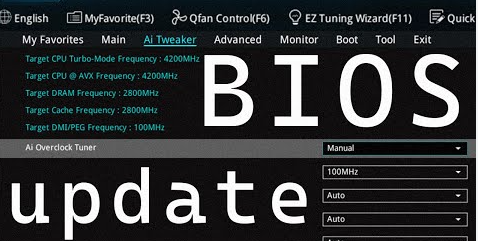
Updating the BIOS on Windows 11 is essential to keeping it running optimally and solving compatibility issues with hardware as well as strengthening security.
Before updating the BIOS, ensure you back up all of your data and note down its current version number; this will help prevent problems during the update process.
Check the current version of the BIOS
Before installing a BIOS update, it is vital that you check its current version first. This will ensure you install an update compatible with your motherboard and avoid installing an incompatible BIOS which could lead to system issues.
To check your BIOS version, Windows provides a tool. To open the BIOS window by pressing Windows key+R simultaneously. Type msinfo32 in the search field and hit enter to access System Information Log which displays current BIOS version. Alternatively, check Registry which requires administrator privileges on your computer in order to do this task.
Once you have identified the BIOS version, follow these steps to install it. First, download and extract the BIOS file from its manufacturer’s website using WinZip or 7-Zip; once extracted copy it onto a USB flash drive formatted as FAT32 before copying to another USB. Renaming may be required depending on manufacturer requirements – they should provide instructions in their website readme file for doing this step.
Before initiating a BIOS update, it’s a wise idea to back up all your personal files – this will protect against corrupted or nonfunctional BIOS updates affecting system functionality or corruption of files. Furthermore, it would be prudent to connect the computer to an uninterruptible power supply – this may provide greater peace of mind during BIOS updates.
Be mindful that BIOS updates may take some time. Be patient and do not attempt to force the computer back onto Windows during this period – once updated, your machine should automatically restart and boot into Windows with a message stating that “BIOS was updated” at the bottom of your screen if all went well.
Download the latest BIOS version
If you own a more modern PC, updating its BIOS from within Windows should be no problem. Most manufacturers provide an application that enables BIOS updates without rebooting into BIOS mode – though as with anything, a backup of all settings should always be considered just in case anything goes amiss during this process; data recovery software such as EaseUS Todo Backup makes this task easy!
For the latest BIOS version, head directly to the manufacturer of your computer or motherboard (or whatever brand it may be). Locate their support page and look for any BIOS/UEFI firmware updates; typically this file comes as a ZIP package with instructions on how to install and possibly even flash utilities or utilities that allow for changing its name.
Once you have the BIOS file, extract it from its ZIP archive and copy it onto a FAT32-formatted USB drive. Plug the drive into your computer, turn it on, press or hold down a key during boot-up time to access BIOS menu, select “Update BIOS”, follow on-screen instructions to complete process and restart automatically when complete.
If your BIOS update does not go as planned, you could encounter various issues with your device or lose important files. In such an instance, professional data recovery tools like MiniTool ShadowMaker and Power Data Recovery could come to the rescue to recover them.
Discovering your computer’s BIOS version can be accomplished using an easily accessible tool. Just press Windows + R to open up the RUN window, which will show a wealth of system details including its BIOS version and date. Alternatively, download an external program like AIDA64 which displays this information directly without needing to reboot first – for further inquiries regarding BIOS issues please contact your manufacturer’s help desk directly.
Install the BIOS
The Basic Input/Output System, commonly referred to as BIOS, is an important piece of software which manages your computer’s initial stages of boot up. It regulates how quickly and securely your machine boots.
Updating the BIOS on Windows 11 is an easy and quick process that won’t alter any of your existing hardware or software. You can download the latest BIOS version directly from manufacturer websites or use Microsoft’s tool which will search for and automatically install the best version suited for your specific system.
Before updating the BIOS, be sure to back up any important files and data – this will protect against an unsuccessful BIOS upgrade that renders your computer unbootable. For your own protection, consider saving important documents on external USB flash drives or hard drives.
Once you have obtained a BIOS file, follow these instructions for installation. Since steps may differ depending on your computer or motherboard manufacturer’s support site, for best results it would be wise to visit them first for guidance and read up on what features and improvements have been included in their new BIOS release notes as a useful way of keeping informed.
Once installation is complete, reboot your computer to verify if BIOS was successfully updated by checking its version in System Information window – this should match up with what was downloaded from manufacturer website.
BIOS updates no longer have the capacity of bricking your PC, but you should still take precautions when installing one. Backup all important data before beginning, power up, close any other applications running in the background that might interfere with or slow down the update, close third party antivirus programs etc and ensure a seamless experience – this way your BIOS update should go without issue!
Restart the computer
The BIOS (Basic Input Output System) software on your motherboard serves to communicate between hardware components. It oversees startup process and keeps your computer secure; however, over time it may become outdated and require an update for proper functioning. Updating BIOS in Windows 11 computers can provide significant stability benefits, performance increases and increased security measures.
First, download the most up-to-date BIOS file from its manufacturer’s website and run it to begin installation process. When done, follow any additional on-screen instructions until complete – once updated restart your computer immediately as this may take some time!
Once the BIOS update has completed, it’s important to verify its success by opening up System Information window and checking out BIOS version number and date; if successful updates were applied successfully, this window should show your new version.
Before updating the BIOS on your computer, it is wise to back up any important files. This will allow for recovery should something go awry during the update process and to avoid potential downtime during update process. It is also advisable to disable antivirus software during this update process and, if using a laptop computer, to keep battery charged at all times in order to avoid losing power during process.
Before performing a BIOS update, it is a best practice to back up all your files and programs in order to protect against any data loss or corruption that could occur during the update process. A reliable backup tool such as EaseUS Todo Backup offers easy data protection across any location – such as cloud storage, NAS drives, external hard drives or local computers. Plus it can restore files even if you forget the password for your hard drive!